
How to Automate Your Busywork With AI (No Coding Required)
Most busywork doesn’t feel like a problem worth solving. It’s not one big, obvious inefficiency — it’s twenty small ones. Retyping a name from an email into a spreadsheet. Writing the same three-sentence reply for the fourth time this week. Copying a meeting’s action items into a task list by hand while the meeting is still fresh enough to remember correctly. None of it is hard. All of it adds up, quietly, to hours you never quite notice leaving.
For most of the last decade, fixing that meant learning to code, hiring someone who could, or just living with it. That’s no longer true, and not because of some dramatic leap. It’s because two separate things matured at the same time: no-code connector tools that already knew how to move data between your apps, and AI models good enough to handle the part those tools always struggled with — reading something messy and deciding what it means. Put together, you get software that can watch your inbox, understand what a message is actually asking for, and draft or file the response without you opening it.
This guide is about how to actually do that, not the pitch for why you should. No dramatic productivity multiplier, no “10x your output” framing. Just what these tools are, which of your repetitive tasks are genuinely worth handing off, a concrete framework for building your first automation, and an honest look at where this approach breaks down, because it does, in specific and predictable ways.
Quick answer: You can automate real, repetitive busywork without writing code by connecting the apps you already use through a no-code platform (Zapier, Make, n8n) or a plain-language AI assistant (Lindy) and letting an AI step handle the part that needs judgment, like reading an email or drafting a reply. Start with one task that’s frequent, rule-based, and low-stakes, build it in an afternoon, watch it run for a week before trusting it fully, and expand from there.
Here’s what you’ll walk away knowing:
- What “automation,” “AI automation,” and the trigger-action model underneath both actually mean, in plain terms, and how they differ from an AI agent.
- A simple test for deciding which of your tasks are genuinely worth automating first, and which ones you should leave alone.
- What the current no-code tools actually do differently from each other, Zapier, Make, n8n, Activepieces, Gumloop, and Lindy, with real pricing so you can compare them properly.
- A five-step framework for building your first automation, plus a full worked example from an actual busywork task.
- The honest risks, cost creep, hallucinated data, privacy exposure, and losing the human touch where it matters, and how to build around each one instead of getting burned by it.
What “automating with AI” actually means, in plain terms
Before comparing tools, it’s worth untangling three phrases vendors use almost interchangeably: automation, AI automation, and agentic automation. They’re related, but they behave differently once something goes wrong, which is exactly when the difference stops being academic.
Automation, AI automation, and “agentic” sit on a spectrum, not in one bucket
Plain automation is the oldest idea here: a fixed set of rules that runs the same way every time. If a new row appears in this spreadsheet, create a task in that project tool. No judgment involved, no surprises, and no adaptation if the input looks different than expected. IBM’s engineering docs draw the same line the rest of the industry does: traditional automation follows predefined rules and workflows, which is precisely why it’s so predictable and so brittle at the same time.
AI automation keeps that same fixed structure but drops an AI model into one or more steps. The workflow still runs trigger, then step, then step, in the same order every time — but one of those steps might now be “summarize this email” or “classify this ticket’s urgency” instead of a rigid rule. This is what most of the tools in this guide actually are: automation with AI steps inserted, not something that reasons on its own about what to do next.
Agentic automation is a step further again: the AI decides the sequence of steps itself, adapting as it goes rather than following a diagram you built in advance. That’s a genuinely different and more flexible capability, and it comes with genuinely different risk, which is why our companion guide on what AI agents actually are exists as a separate, deeper read. Most of what you’ll build using the tools in this guide is AI automation, not a true agent, and knowing which one you’re building changes how much supervision it needs.
The trigger-action model underneath almost every one of these tools
Strip away the branding and nearly every no-code platform runs on the same two ideas: a trigger and an action. A trigger is the event that starts things moving — a new form submission, a new email, a calendar event five minutes away. An action is what happens next — create a record, send a message, post to a channel. Zapier’s own documentation describes it plainly: a trigger is the event that starts a Zap, and an action is what the Zap does once it fires. Chain several actions after one trigger and you have a workflow; add a step where an AI model reads the trigger’s data and decides something (which category, what reply, which record to update) and you have an AI automation.
That structure explains most of what these tools can and can’t do. They’re excellent at “when X happens, do Y,” because that’s exactly the shape they’re built for. They’re a poor fit for genuinely open-ended requests with no clear starting event, which is where an agent, not a workflow tool, becomes the better fit.
APIs, connectors, and webhooks, translated out of engineering jargon
Three more terms worth defining once, because every tool page you’ll read assumes you already know them.
An API is simply the agreed-upon way one piece of software asks another for information or tells it to do something — like a waiter carrying your order to the kitchen and bringing back the plate, without you needing to know how the kitchen works. A no-code connector is a pre-built shortcut on top of that API, built by Zapier, Make, or n8n so you can click “connect Gmail” instead of writing the request yourself. That’s the entire value proposition of these platforms in one sentence: they’ve already done the API work for thousands of apps so you don’t have to.
A webhook is the mechanism that makes a trigger feel instant instead of laggy. Instead of a tool repeatedly asking “anything new yet?” (called polling), the sending app pushes a message the moment something happens. Zapier’s own explainer puts it well: webhooks are automated messages apps send the instant something happens, rather than making you wait for the next scheduled check. You rarely need to configure one directly on beginner-friendly platforms, but it’s the reason some triggers fire in seconds and others take a few minutes.
Which of your tasks are actually worth automating first
Not everything you find tedious is a good automation candidate, and picking the wrong first project is the single most common reason people try this once and give up. Zapier’s own guidance on this, refined over years of watching what actually works, comes down to a short test: does the task recur regularly, involve moving data between apps, follow the same steps every time, and cost you real time — roughly 15 to 20 minutes a day or more? If a task fails any of those, it’s usually not worth the setup effort yet.
The clearest way to see it is side by side:
| Good automation candidate | Poor automation candidate (for now) |
|---|---|
| Happens daily or weekly, not once | A one-off task that won’t repeat |
| Follows the same steps every time | Requires real judgment or creativity each time |
| Moving or copying data between two apps | A nuanced, high-stakes decision with no clear rule |
| A clear, checkable “done” state | Ambiguous success criteria you’d struggle to define |
| Low cost if it’s occasionally wrong | High cost if it’s wrong (legal, financial, safety) |
Email triage, meeting-note capture, lead-record creation, invoice-field extraction, and social-post scheduling all land firmly in the left column, which is why they’re the most common starting points and the ones covered in detail below. Ethan Mollick’s framing of this, from his “In Praise of Boring AI” essay, is worth keeping in mind here: every automation wave in history has started with the tedious and repetitive work, not the interesting work, and that’s a feature, not a limitation. The goal isn’t to automate everything. It’s to automate the specific slice of your week that’s eating time without asking anything of you that you’d actually miss doing.
The no-code toolkit: what each type of tool is actually built for
Once you know what you’re trying to automate, the harder question is which tool fits. These platforms look similar in marketing screenshots — colorful nodes connected by lines — but they differ enormously in how technical a team needs to be, how a workflow is built, and how pricing behaves once it’s actually running.
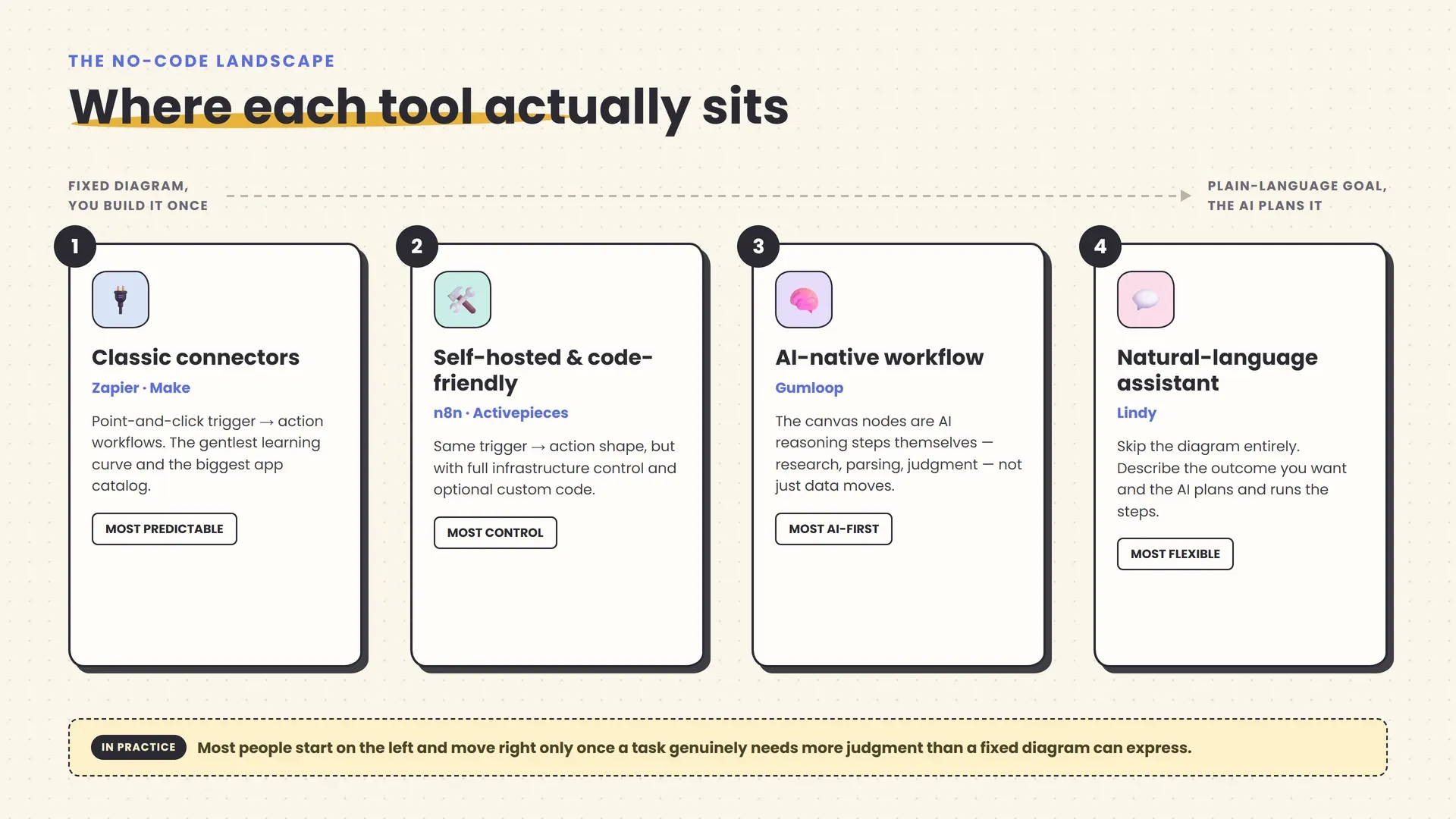
The classic connectors: Zapier, Make, and Power Automate
Zapier is the default starting point for most people, and for good reason: roughly 8,000 app integrations, the gentlest learning curve of any tool here, and a free plan (100 tasks/month, two-step Zaps) that’s enough to try a real automation before paying anything. Its paid tier starts at $19.99/month (billed annually) for the Professional plan, which unlocks multi-step Zaps and roughly 750 tasks. The tradeoff is cost at volume — every completed action step in a workflow counts as a task, so a busy five-step automation can burn through an allotment fast — and it’s cloud-only, with no option to self-host.
Make (formerly Integromat) trades some of that ease-of-use for a visual canvas that handles branching logic and data transformation more directly than Zapier’s linear step list. Its free plan includes 1,000 credits a month across two active scenarios; the paid tier starts at $9/month for 5,000 credits. It’s generally the better choice once a workflow needs real conditional logic — “do this if the deal is over $10,000, otherwise do that” — rather than a straight sequence of steps.
Microsoft’s Power Automate is the natural fit if your organization already runs on Microsoft 365: it starts at $15/user/month for cloud flows and standard connectors, with AI features layered in through Copilot Studio credits ($200 for a 25,000-credit block per month). It’s worth knowing about mainly because of that ecosystem fit, not because it’s more capable than Zapier or Make on its own.
The self-hosted, developer-friendly option: n8n and Activepieces
n8n is built for people who want to see and control everything, without necessarily needing to write code. Its visual canvas is genuinely no-code for standard use, but it also lets you drop in JavaScript or Python for logic the builder can’t express, and — its biggest structural difference from Zapier and Make — it can be fully self-hosted for free via its open Community Edition, so your workflow data never has to leave a server you control. n8n Cloud, the fully managed option, starts at €20/month for 2,500 executions; the self-hosted edition is free software, and you pay only for the server it runs on.
Activepieces covers similar ground with a different pricing philosophy: rather than charging per task or per credit, it charges per active workflow, with the first 10 flows free and $5/month per additional flow after that, each with unlimited executions. That structure can be significantly cheaper than usage-metered pricing if you run a small number of high-volume automations, and it’s also MIT-licensed and self-hostable, which matters for teams that specifically want open-source infrastructure.
The AI-native workflow builder: Gumloop
Most tools on this page treat AI as one optional step bolted onto a data-movement workflow. Gumloop flips that: its canvas nodes are commonly AI reasoning steps themselves — scraping a page, parsing a document, chaining multiple models together — with conventional automation actions available alongside them. It’s the right fit for tasks where the AI judgment is the point (research, enrichment, document understanding), rather than a general-purpose Zapier replacement. Gumloop’s free plan includes 5,000 credits a month; its Pro plan is $37/month for 20,000-plus credits.
The plain-English AI assistant: Lindy
Lindy is different in interface from everything above it. Instead of designing an explicit trigger-action diagram, you describe an outcome — “triage my inbox every morning and draft replies in my voice” — and Lindy plans and carries out the steps itself, closer to delegating to an assistant than building a workflow. That makes it the most agent-like tool in this list, even though it’s marketed as automation. It has no free plan; pricing starts at $49.99/month for the Plus tier (up to two connected inboxes), with a 7-day trial to test it first. It’s a strong fit for the specific, high-frequency knowledge work of email, meetings, and calendars, and a poor fit if what you actually need is general-purpose data movement between arbitrary apps.
The tools you might already be paying for: ChatGPT, Claude, and Copilot Studio
You may not need a dedicated automation platform at all for the simplest cases. ChatGPT’s Scheduled Tasks feature lets you set up a recurring prompt — “check this page daily and tell me if the price changed,” “summarize my notes every Friday” — directly inside the chat interface, on any paid tier (the number of active tasks you can run at once scales with your plan). Claude offers a comparable pattern through Projects, for organizing recurring work against a fixed set of source documents, and a browser extension, Claude for Chrome, that can navigate a website and carry out multi-step tasks on your behalf — currently in beta and limited to Chrome and Edge. Neither is a substitute for a real workflow platform once you need multi-app coordination, but both are worth trying before you add another subscription, since you may already be paying for one of them.
For organizations standardized on Microsoft 365, Microsoft Copilot Studio is the enterprise version of the same idea — a low-code agent builder that plugs into Teams, SharePoint, and more than 1,400 external connectors, included at no extra cost for licensed Microsoft 365 Copilot users building internal-use agents.
Comparing the core options at a glance
| Tool | Best for | Starting price | Free tier | Watch out for |
|---|---|---|---|---|
| Zapier | Broadest app catalog, easiest onboarding | $19.99/mo | 100 tasks/mo, 2-step only | Task pricing scales expensive at volume |
| Make | Branching logic, visual data flow | $9/mo | 1,000 credits/mo | Steeper learning curve than Zapier |
| n8n | Self-hosted control, technical teams | Free (self-hosted) / €20/mo cloud | Unlimited self-hosted | Cloud’s permanent free tier is gone |
| Activepieces | Open-source, predictable per-flow cost | Free for 10 flows, then $5/flow/mo | 10 active flows | Smaller ecosystem than Zapier or Make |
| Gumloop | AI-reasoning-heavy workflows | $37/mo (Pro) | 5,000 credits/mo | Smaller integration catalog |
| Lindy | Natural-language delegation for inbox/meetings | $49.99/mo | None (7-day trial) | Priciest entry point on this list |
Six busywork tasks that already have a dedicated tool, no workflow needed
Not every busywork problem needs a connector platform. For several of the most common tasks, a purpose-built point tool already does the job better than anything you’d wire together yourself in Zapier, and it’s worth checking this list before building a custom automation from scratch.
Email triage and drafting. Fyxer AI reads and organizes an inbox and drafts replies in your voice; if you’re already inside Gmail or Outlook, Gemini in Gmail and Microsoft Copilot in Outlook do a lighter version of the same job natively, with no separate account to manage.
Meeting notes and action items. Fathom, Fireflies.ai, and Read AI all join a call, transcribe it, and hand back a summary and action-item list within minutes of it ending — a job a general-purpose automation platform can’t do on its own, since none of them can actually attend a meeting.
Spreadsheet cleanup. Copilot in Excel and Gemini in Google Sheets let you describe a cleanup task in plain language, directly inside the spreadsheet, instead of building a separate workflow just to shuttle data in and out of it.
Social media scheduling. Hootsuite and Later both handle AI-assisted caption drafting and scheduled, multi-platform publishing as their core product, which tends to be more reliable than approximating the same thing with a generic connector.
Research aggregation. Perplexity and, for anything citation-heavy, Consensus are built specifically to search multiple sources and synthesize a cited answer — a task that’s a poor fit for a trigger-action workflow, because there’s no single clear “trigger” to hang it on.
Data entry, invoice processing, and lead qualification, by contrast, genuinely are workflow problems: data needs to move from one system to another based on a rule, which is exactly why they’re the tasks the connector platforms earlier in this guide are built for.
The rule of thumb worth keeping: if a task is really about one specific, well-defined job — transcribing a meeting, cleaning a spreadsheet, scheduling a post — a dedicated tool built for that job will almost always beat a general connector platform you configure yourself. Reach for Zapier, Make, or n8n when the job is actually about moving data or coordinating between several apps, which is the problem those platforms were built to solve.
A five-step framework for automating your first task
Building your first automation is less about the tool and more about doing these steps in order. Skipping straight to “pick a tool” is the most common way people end up with a workflow that technically runs but doesn’t actually save anyone time.
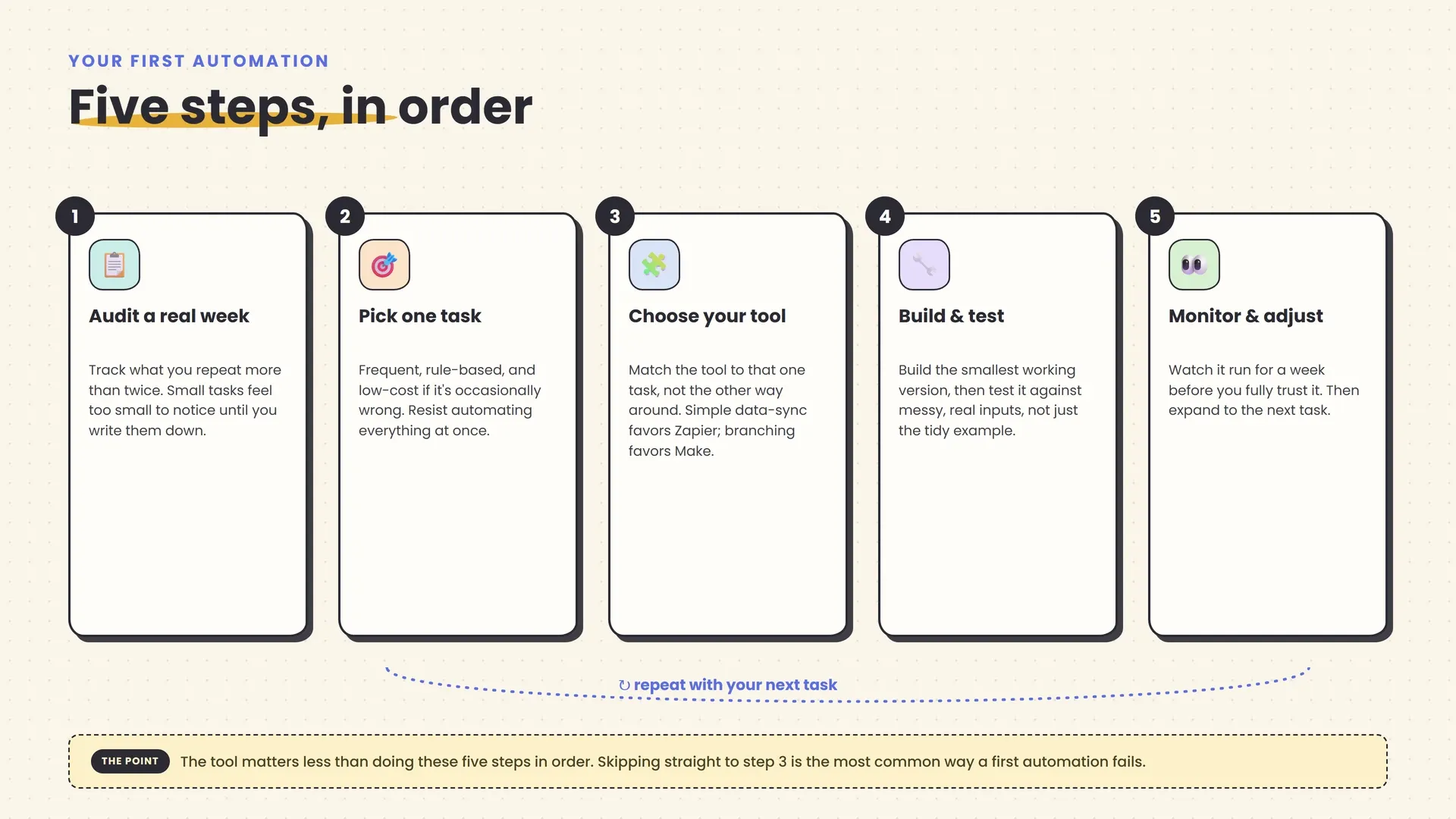
1. Audit a real week, not your memory of one. Most people underestimate how much time small repetitive tasks actually cost, because each instance feels too small to track. For one week, jot down anything you do more than twice that follows the same steps: which email you reply to the same way, which spreadsheet you update by hand, which meeting notes you retype somewhere else.
2. Pick exactly one task, using the test from the previous section. Frequent, rule-based, low-stakes if it’s occasionally wrong. Resist the urge to design your ideal fully-automated business on day one — a single working automation you trust is worth more than five half-built ones you don’t.
3. Choose your tool based on that one task, not on reputation. If it’s mostly data moving between two mainstream apps, Zapier’s catalog and templates will likely have you covered in an afternoon. If it needs branching logic, look at Make. If it’s genuinely about delegating judgment in plain English, look at Lindy.
4. Build the smallest working version, then test it against real, messy inputs. Most platforms let you test a workflow with real sample data before turning it on. Deliberately test with the weird cases — a name with an unusual format, an email with no clear subject, a form submitted with a field left blank — because that’s where an untested automation quietly breaks.
5. Monitor it for a week before you fully trust it, and adjust. Turn it on, but check its output daily at first rather than assuming silence means success. Most platforms keep an execution history or run log specifically for this. Once you’ve watched it handle real inputs correctly for a week, expand it, add the next step, connect the next app, or move on to automating a second task.
A worked example: automating inbound lead follow-up from scratch
Abstractions are easier to trust once you’ve seen one built. Here’s a genuinely common small-business automation, walked through step by step, using the framework above.
The task: A consultant gets new client inquiries through a website contact form. Right now, each one sits in an inbox until she has time to read it, manually add the person to a spreadsheet, and send a reply asking a few qualifying questions. It happens most weekdays, follows the same shape every time, and getting it slightly wrong (a delayed or slightly generic first reply) costs little.
Step 1, trigger. In Zapier, the trigger is “New form submission” from the website’s form tool. The moment someone submits, the workflow fires — no polling delay, since most form tools push this instantly via webhook.
Step 2, an AI step reads and classifies. Rather than treating every submission identically, an AI step reads the message field and classifies it: is this a genuine project inquiry, a vendor pitch, or spam? This is the part a purely rule-based Zap from five years ago couldn’t do well, because it requires reading and understanding open-ended text, not just checking whether a field is empty.
Step 3, action: log it. For anything classified as a genuine inquiry, the workflow adds a new row to a CRM or spreadsheet with the person’s name, email, and a one-line AI-generated summary of what they’re asking for.
Step 4, action: draft, don’t send, a reply. A second AI step drafts a reply asking two or three qualifying questions, in a tone matched to a short style guide she wrote once. Critically, this step creates a draft in her email, rather than sending automatically — the human checkpoint that matters most, given that this touches an actual prospective client.
Step 5, she reviews and sends. She opens her drafts folder once or twice a day, skims each one, edits where needed, and sends. The manual work has shrunk from “read, think about what to say, write it, log it” down to “skim and approve.”
That’s the whole automation: one trigger, one classification step, one logging step, one drafting step, and a human still making the final call on anything that goes out under her name. Nothing about it required code. Everything about it required deciding, up front, exactly where the AI’s judgment ends and hers begins.
Where this goes wrong, honestly
None of the above is difficult to build. What’s harder, and what most breezy “no-code AI” content skips, is knowing where this approach genuinely fails, so you can build around it instead of discovering it the expensive way.
AI is confidently wrong sometimes, and your workflow won’t catch that for you
An AI step that misreads a field, misclassifies an email, or invents a detail that sounds plausible doesn’t announce the mistake. It just produces output that looks the same as a correct one. The clearest documented example of what this costs at scale: Deloitte’s Australian arm delivered a government report containing AI-generated errors, including a fabricated quote attributed to a federal court judge and citations to reports that don’t exist, and ultimately refunded part of its fee after the errors were caught. That was a large consulting engagement, not a small-business email automation, but the underlying failure mode is identical to what can happen inside a workflow that reads an invoice, classifies a lead, or drafts a reply: the error is plausible enough that nobody catches it until it’s already caused a problem. Keep a human checkpoint on anything where a wrong output would actually cost you something.
Usage-based pricing can turn a cheap-looking workflow into an expensive one
Every platform in this guide bills, in one form or another, based on how much a workflow actually runs — tasks, credits, or executions. That’s fine at low volume and can get genuinely expensive once an automation succeeds and starts running thousands of times a month, especially once AI steps are involved, since those typically consume more of a plan’s allotment than a simple data-sync step. Before committing to a plan, model your actual expected monthly volume, not the number in the pricing page’s cheapest-tier example.
Every automation you connect is a new door into your inbox, calendar, or CRM
Connecting an automation tool to real business systems means granting it real access. That’s a reasonable trade, but it’s a decision, not a formality. Ask what data a specific step actually needs (often less than “full access”), check whether the vendor trains its own AI on your content by default (several do, with an opt-out; a few don’t by default), and treat sensitive data — anything involving customers, finances, or health information — as a reason to read the vendor’s data-retention policy before connecting the account, not after.
Automating a customer-facing process can cost you the thing that made it work
It’s tempting to push automation as far as it’ll go once the first version works, but customer-facing processes carry a real cost when that goes too far. Zendesk’s 2025 CX Trends research found a genuinely nuanced picture, not a simple “customers hate bots” story: 51% of consumers actually prefer bots for quick, routine questions, but 84% say a human option should always remain available, especially for anything urgent or emotionally loaded. Klarna’s well-publicized reversal, after routing most customer service through an AI system and later rehiring humans once satisfaction dropped, is the clearest cautionary example of what happens when that line gets crossed — covered in more depth in our guide to AI agents. The safest default: automate the routine share of a customer-facing process, and keep a visible, easy path to a human for anything else.
”No-code” still means learning something, just not syntax
Marketing around these tools implies a five-minute setup, and for a single trigger-and-action Zap, that’s often true. But user reviews aggregated on review platforms like G2 consistently describe a real learning curve once a workflow needs conditional logic, error handling, or troubleshooting a third-party app’s authentication — not because it requires code, but because it requires understanding how the specific platform structures data and decisions. Budget a genuine afternoon for your first real automation, not the fifteen minutes a product demo implies.
The tool you build on can change the deal, or disappear
This is a fast-moving market. Relay.app, a well-regarded automation tool, announced its own shutdown in mid-2026 with a few months’ notice to migrate off. That’s not a reason to avoid these tools, but it is a reason to treat any single-vendor automation as something you’d need to be able to rebuild elsewhere, and to lean toward platforms — like the self-hosted option in n8n — that reduce how painful that would be if it ever happened.
How to actually choose between these tools
Once you understand the tradeoffs above, picking a tool comes down to three honest questions about your own situation, not a feature checklist.
How technical is the person maintaining this? If nobody on your team wants to touch a visual canvas with branching logic, Zapier’s linear model is the right starting point regardless of what it costs at scale. If you have someone comfortable with a bit of JavaScript and a genuine reason to keep data in-house, n8n’s self-hosted option opens up real flexibility Zapier and Make don’t offer.
How much does this actually need to run? A workflow that fires ten times a month behaves completely differently, cost-wise, than one firing ten thousand times a month. Estimate your real volume before comparing sticker prices, since task-based, credit-based, and per-flow pricing all scale very differently once volume climbs.
Do you want to design a workflow, or describe an outcome? Most of the tools here have you build an explicit diagram. Lindy has you describe a result in plain language instead. Neither is objectively better — a visual diagram is easier to audit and predict, while natural-language delegation is faster to set up for open-ended, judgment-heavy tasks. Pick based on how much you personally want to see and control every step versus how much you’re comfortable handing off.
Whichever you choose, most platforms here offer a genuinely usable free tier or short trial. Building a real automation on it, even a small one, will tell you more in an afternoon than another comparison article will.
Why this is worth doing even if you only ever automate one thing
You don’t need a fully automated business to benefit from any of this. Generative AI use among small businesses in the US climbed from about 23% in 2023 to somewhere around 58–60% in 2025, according to the U.S. Chamber of Commerce’s small-business technology survey, and separate Federal Reserve research put worker-level generative AI use at roughly 41% of the U.S. workforce by November 2025. Most of that adoption isn’t a company reinventing itself around AI. It’s an accumulation of exactly the kind of small, unglamorous automations covered in this guide — one inbox, one spreadsheet, one recurring report at a time.
That’s the more realistic version of this technology than the “AI will run your business” pitch you’ll see elsewhere. A single well-built automation that reliably saves you twenty minutes a day is a genuinely good outcome on its own. It doesn’t need to be the first domino in some larger transformation to be worth building.
The bottom line
Automating your busywork with AI, without writing code, is now a realistic afternoon project, not a fantasy reserved for technical teams. The tools exist, they’re mature enough to trust with the right guardrails, and the pattern for using them well is consistent: pick one frequent, rule-based, low-stakes task, choose the tool that matches how technical you are and how much it’ll actually run, build the smallest version that works, and keep a human in the loop on anything that would actually cost you something if it went wrong.
Start with one task. Watch it work for a week. Then decide what’s next.
Frequently asked questions
Do I need to know how to code to automate my work with AI?
No. Tools like Zapier, Make, Gumloop, and Lindy are built around visual, point-and-click interfaces or plain-language instructions, not code. Even the more technical options, n8n and Activepieces, work fine without code and only ask for it if you want to do something their visual builder can't express.
What's the actual difference between automation and an AI agent?
A workflow automation runs a fixed sequence you designed: trigger, then fixed steps, every time. An AI agent is handed a goal and works out its own steps, which is more flexible and less predictable. Lindy sits close to the agent end of that spectrum even though it's sold as automation. See our full guide to what AI agents are for the deeper distinction.
Which no-code automation tool should I start with?
For a first automation, Zapier is the easiest on-ramp: the biggest app catalog, the gentlest learning curve, and a free plan that lets you try a real two-step workflow before paying. Move to Make once you need branching logic, or to n8n once you want full control and self-hosting.
How much does AI automation realistically cost per month?
A single simple workflow can run free or under $10/month on Zapier's or Make's entry tiers. Costs climb with volume and with how many steps include an AI model, since AI steps typically consume more credits or tasks than a plain data-sync step. Model your expected monthly volume before picking a plan, not just the advertised starting price.
Is it safe to connect an AI automation tool to my email, calendar, or CRM?
It's workable, but treat access as a decision, not a formality. Start with the narrowest permission scope a workflow needs, check the vendor's data-retention and AI-training policy before connecting anything sensitive, and keep a human review step on anything that sends money, deletes data, or contacts a customer directly.
Can AI automation replace an employee?
Rarely cleanly. It's much better at absorbing a role's routine, repetitive volume than at replacing the judgment calls that come with it. Klarna's well-documented reversal, after routing most customer service through AI and later rehiring humans, is the clearest public example of what happens when that distinction gets ignored.
Related articles
Best No-Code AI Automation Tools in 2026: Zapier vs Make vs n8n
Zapier, Make, or n8n? A practical 2026 comparison of ease of use, AI features, integrations, pricing, control, and real-world fit.
The Complete AI Tool Stack for Solopreneurs
A practical, job-by-job AI tool stack for solopreneurs: what to use for writing, email, marketing, admin, and support, what it actually costs, and what to skip.
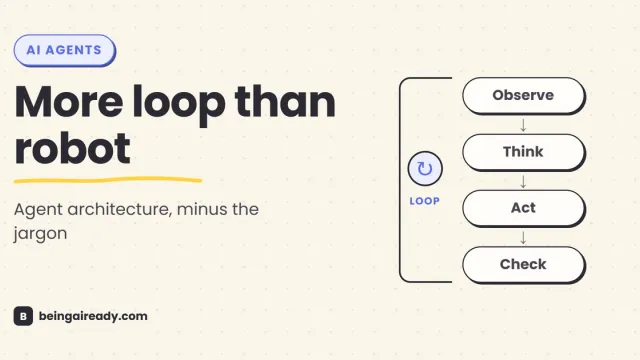
How Do AI Agents Actually Work? Architecture in Plain English
A plain-English guide to AI agent architecture: models, tools, memory, orchestration loops, guardrails, and what happens when an agent takes action.