
How to Use ChatGPT, Claude, and Gemini Well
Buy a camera today and it will have somewhere between fifteen and forty settings you will never touch. Aperture priority, back-button focus, custom white balance, bracketing — all sitting there, unused, while the dial stays on Auto. That isn’t a criticism of the owner. Auto is genuinely good now, good enough that most photos taken on it look fine. The gap between “fine” and “the photos actually look like you meant it” mostly lives in that pile of settings nobody opens.
ChatGPT, Claude, and Gemini have the same problem, and it’s a bigger problem because almost nobody thinks of them as having settings at all. A search engine has one box and one behavior — you type, you get ten blue links, there is nothing else to learn. These tools look identical to that: one box, type a thing, get an answer. So people use them exactly like a search engine, one query at a time, a fresh tab every session, and conclude — reasonably, given what they’ve seen — that this is simply what the product is.
It isn’t. Underneath that one box sits a small stack of features — a memory the model builds about you, a place to store standing instructions, a way to give a task its own persistent workspace, a model picker that trades speed for depth — that most users never open, largely because nothing in the interface insists that they should. This guide is about that stack: what each piece actually does, why it exists, and the small number of habits that take someone from “I asked it something once and it was fine” to “I built this into how I actually work.” It assumes you already know roughly what these tools are. If you don’t, or if the phrase “large language model” is doing a lot of unexplained work in your head, our plain-English AI glossary and how large language models work are the right place to start; this piece picks up from there. And if the problem you actually have is what to type, our companion guide to prompt engineering for non-technical people covers that in full — this one is about everything around the prompt.
Quick answer: Using an AI chatbot well isn’t mainly about clever wording. It’s about knowing the product has more than a text box — custom instructions, a memory system, a way to give a task its own workspace, file uploads, and a slower “thinking” model for hard problems — and building four or five small habits around them: set your instructions once, let a project hold context for recurring work, feed it real material instead of describing it, verify anything that matters, and keep talking instead of accepting the first answer. None of it requires a subscription; it requires knowing the features exist.
Here’s what this guide covers:
- Why picking a tool matters far less than most comparison articles imply, and how to stop tool-shopping.
- The four features — custom instructions, memory, project workspaces, and voice — that quietly separate a beginner’s account from a confident one.
- How ChatGPT, Claude, and Gemini each name the same handful of ideas differently, so you can find them regardless of which one you use.
- How to feed a model real material instead of describing it, and when a document is too long to just paste in.
- The one habit that catches most AI mistakes before they cost you anything.
- When it’s actually worth switching to the slower, more expensive “thinking” model — and when it’s a waste of a coffee break.
- The specific, boring mistakes that keep people stuck at beginner level for months.
Pick one tool and stop shopping around
The comparison-of-the-month genre — “ChatGPT vs. Claude vs. Gemini: Which Wins in 2026” — implies there’s a correct answer waiting to be found, and that finding it is the important part. It isn’t. All three are large, capable, general-purpose chat assistants built on frontier language models, updated on similar timelines, and for the vast majority of everyday tasks — drafting, summarizing, brainstorming, explaining, planning — the differences between them are smaller than the difference between using one of them well and using it badly.
That said, the three products do have genuine, sourced personalities worth knowing before you commit:
| ChatGPT | Claude | Gemini | |
|---|---|---|---|
| Made by | OpenAI | Anthropic | |
| Standout strength | Largest ecosystem — voice mode, the GPT Store, image and video generation in one app | Careful, structured writing and reasoning; strong at working with long documents and code | Deep integration with Gmail, Docs, Drive, and Google Search |
| Free tier | Yes, limited messages and an older default model | Yes, limited daily messages | Yes, generous for casual use |
| Entry paid tier | Plus, around $20/month | Pro, around $20/month | Google AI Pro, bundled with Google One storage |
| Worth knowing | Custom GPTs let anyone package a task-specific assistant and share it | No dedicated voice mode as of mid-2026 — text and a lighter mobile app only | Pricing and features are bundled with your Google One storage plan, not sold standalone |
Given that, the highest-leverage decision isn’t which one is “best” — it’s picking one and using it enough that its quirks become familiar. Every technique in this guide transfers almost entirely between them; the buttons are in different places, not different countries. If you genuinely have no default yet, our AI chat assistants directory walks through the options in more depth. If you already have one installed on your phone, that’s your answer — start there, and treat a second tool as a specialist you call in for its particular strength (a long PDF into Claude, anything tied to your Gmail into Gemini) rather than a rival you’re auditioning.
The chat window is a workspace, not a search bar
The single mental shift that unlocks almost everything else in this guide: a conversation is not a query. When you search Google, the input and the output are one exchange, and the box resets. When you talk to an AI chatbot, everything you’ve said earlier in that same conversation is still sitting in view, shaping what comes next. You can point back at your third message from an hour ago and it’s still there. You can say “actually, redo the second option, but shorter” and it knows exactly which second option you mean.
This sounds obvious once stated, but it explains why so many people report middling results: they treat every request as a fresh transaction. Ask a vague question, get a mediocre answer, close the tab, try again tomorrow with an equally vague question in a brand-new chat, learn nothing about the tool in between. The confident version of this habit looks different: one conversation per task, a handful of back-and-forth turns inside it, corrections layered on top of the first draft rather than started over. Harvard Business Review’s 2025 survey of real-world generative AI use found that the most common uses skew toward quick, everyday personal requests rather than sustained professional workflows — consistent with a lot of usage never getting past the first exchange, treating the tool as a vending machine rather than a workspace. We cover the exact mechanics of iterating well in the prompt engineering guide; the point here is narrower: know that the thread remembers, and use that on purpose.
There’s a limit to how much a thread remembers, though, and it’s a hard architectural one, not a matter of the model “losing focus.” Every model has a context window — the maximum amount of the conversation it can actually see at once, measured in chunks of text called tokens. Once a conversation runs long enough, the oldest messages start falling out of view, and the model will confidently keep responding as if nothing changed, because from its perspective nothing did. We’ve gone deep on why that happens and what to do about it in tokens, context windows, and why AI forgets; the practical takeaway for this guide is simpler: for anything that needs to persist across many sessions, don’t rely on one endless chat — use the project workspaces described next.
The four features almost nobody opens
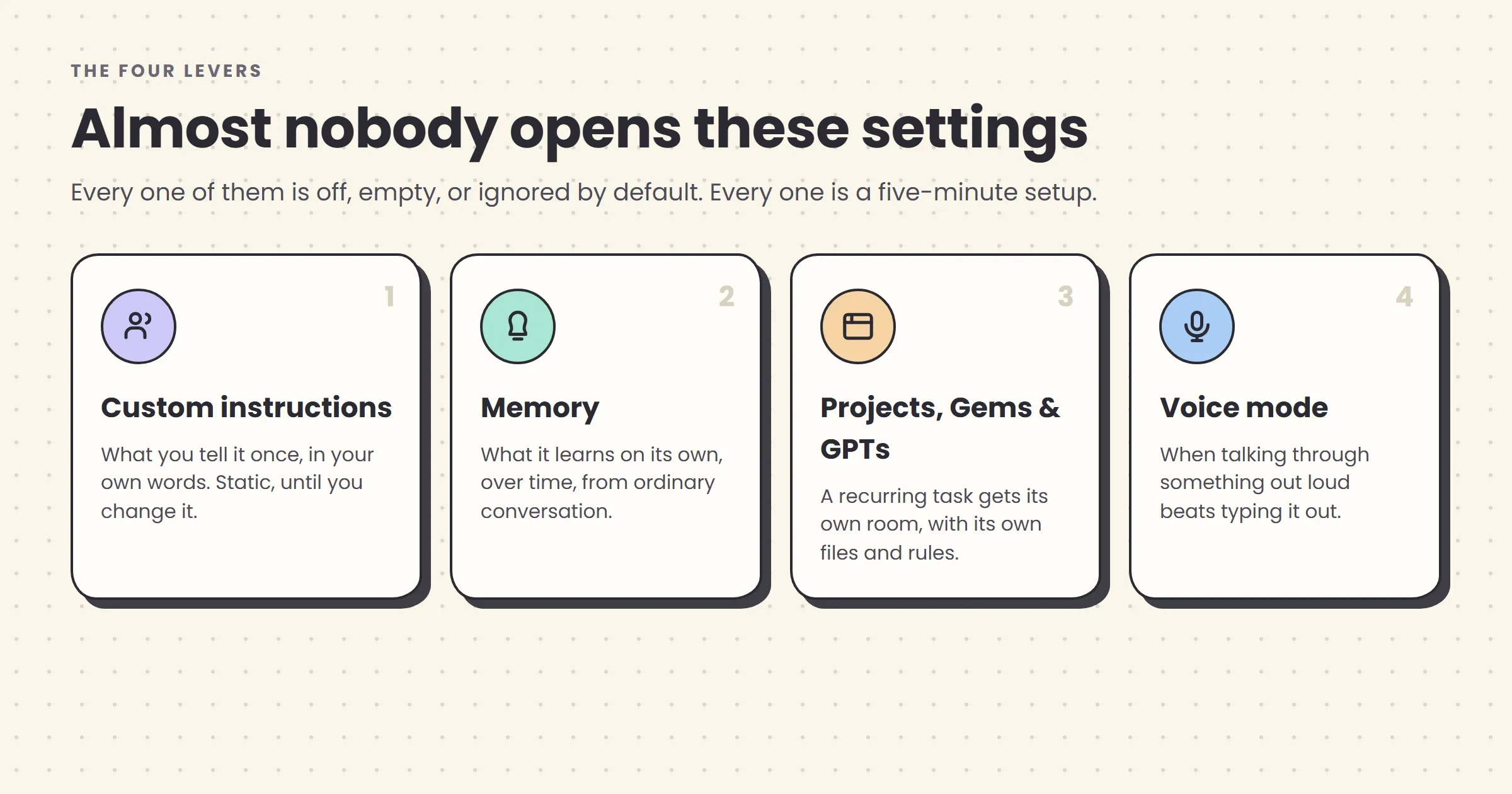
Ask ten regular ChatGPT users where the memory settings live, or what a “project” is for, and most will have used the product for a year without ever finding out. That’s not a criticism — it’s a genuine discoverability failure common to all three products, tucked into a settings menu or a sidebar icon nobody clicks. These four features are where the real gap between beginner and confident usage lives.
Custom instructions: what you tell it once
Custom instructions are a short standing brief — a few hundred to a few thousand characters, depending on the product — that gets silently added to the start of every new conversation you have. Set it up once and you stop repeating yourself. Instead of typing “I’m a solo marketing consultant, keep things concise, British spelling, no corporate jargon” into every third prompt, you write it once and every future chat already knows it.
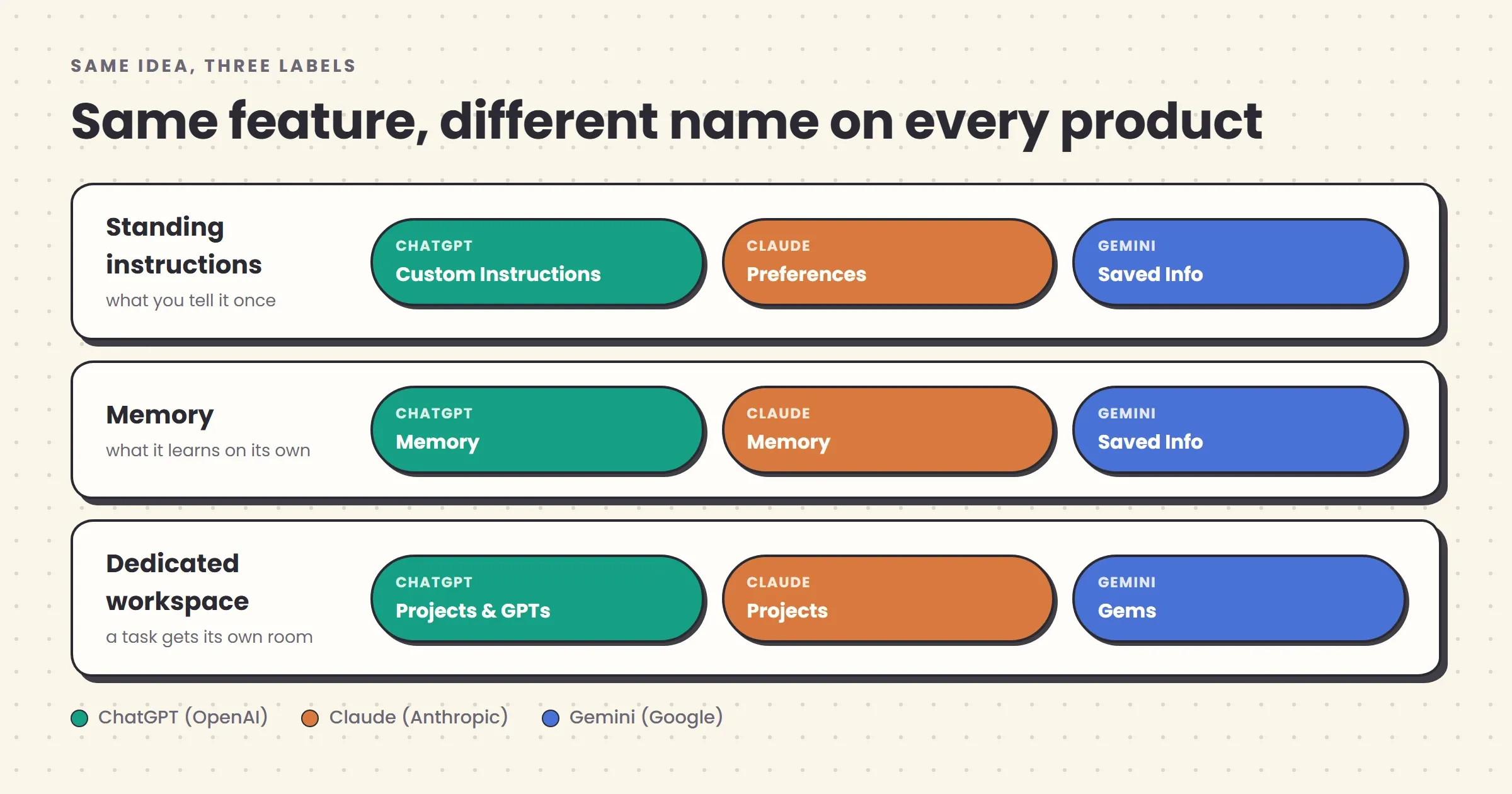
All three tools support a version of this, under different names: ChatGPT calls it Custom Instructions (Settings → Personalization), Gemini calls it “Saved info” or “Instructions for Gemini” depending on your account, and Claude calls it Preferences. What goes in it is entirely up to you, but the useful pattern is: who you are, what you typically need, tone preferences, and standing “never do this” rules. Something like:
I run a small accounting practice with four employees. Most of what I ask
you is client emails, internal process docs, or explaining tax concepts to
non-experts. Keep answers concise and practical. Avoid jargon unless I use
it first. British spelling. When you're not sure about something
tax-specific, say so rather than guessing — I'll verify it myself.
This is static. You write it deliberately, it doesn’t change unless you change it, and it applies identically to a brand-new chat on day one and day three hundred. That distinction matters because it’s easy to confuse with the next feature, which does the opposite.
Memory: what it learns on its own
Memory is what the model picks up about you through ordinary conversation, without you filling in a form. Mention that you manage a team of six, that you’re allergic to em dashes in your own writing, or that your business operates in the EU, and a memory-enabled assistant may quietly file that away and bring it back weeks later, unprompted, when it’s relevant. OpenAI describes memory as ChatGPT “remembering details across conversations” that you can view, edit, or delete individually, or switch off entirely. Anthropic rolled out an equivalent persistent memory to Claude accounts in early 2026, and Google’s Gemini stores the same idea as “Saved info”, viewable and editable at any time.
The practical difference from custom instructions: memory is dynamic and accumulative, built from what you actually say rather than what you deliberately typed into a settings box. It’s genuinely useful — you stop re-explaining your job, your team, your recurring projects every time — but it’s worth an occasional look at the memory list in settings, both to correct anything it’s inferred wrong and because it’s the one feature on this list with a real privacy dimension: it’s a standing record of what you’ve told the tool about your life and work, stored by the company that runs it. Reviewing it every month or two, the way you’d occasionally check what a browser has saved, is a reasonable habit, not paranoia.
Projects, Gems, and Custom GPTs: giving a task its own room
This is the feature most likely to change how you actually work, and the one with the least consistent name across products. The core idea: instead of one giant, ever-growing chat history, you create a dedicated space for a specific ongoing piece of work — a client, a course you’re writing, a quarterly report you update every month — with its own files, its own instructions, and a memory that stays inside that space rather than bleeding into everything else.
OpenAI calls this Projects: workspaces that group chats, uploaded files, and custom instructions so context from one project never leaks into another, which OpenAI notes is “especially useful for long-running or sensitive work.” A more specialized cousin is the Custom GPT — a version of ChatGPT pre-loaded with instructions and knowledge that you (or someone else, via the GPT Store) built for one repeatable job, like “review my blog drafts against our style guide.”
Claude’s equivalent is also called Projects, and functions almost identically: a set of chats that share uploaded documents and standing instructions, so a legal contract you’re working through doesn’t need to be re-explained in every new thread. Google’s version is Gems: custom mini-assistants you configure once with a role and instructions — “my resume editor,” “my SQL tutor” — that then behave consistently every time you open them.
The habit worth building: the moment a task is going to recur — anything you’ll do again next week, next month, or every quarter — give it a project instead of a chat. Upload the reference material once (a style guide, last quarter’s report, a set of brand guidelines) and every conversation inside that project can draw on it without you re-pasting anything. This alone is often the biggest single productivity jump available, and it costs nothing beyond the ten minutes it takes to set up.
Voice mode: when talking beats typing
The least essential of the four, but genuinely useful in specific moments: thinking out loud on a walk, talking through a decision hands-free while cooking, or a quick back-and-forth in the car. ChatGPT’s Advanced Voice Mode is the most developed of the three — natural turn-taking, handles interruptions, and on mobile can even look at your screen or camera while you talk. Gemini Live covers similar ground with tighter integration into Android and the rest of Google’s apps. Claude, as of mid-2026, has no dedicated voice mode — text and a lighter mobile app only, which is worth knowing if voice interaction is something you’d actually use regularly.
Voice is not a different way of prompting — every habit in this guide still applies, you’re just speaking the ingredients instead of typing them. Its real value is lowering the activation energy for a quick conversation you’d otherwise skip because opening a laptop felt like too much friction.
Feeding it real material, not descriptions of material
A large share of mediocre AI output traces back to one thing: the user described a document instead of handing it over. “It’s a fairly formal report, about twelve pages, covers our Q2 numbers” gives the model almost nothing to work with compared to actually attaching the report. All three tools accept file uploads — PDFs, Word documents, spreadsheets, images, screenshots — directly in the chat window, and the difference in output quality between “describe it to me” and “here it is” is usually the single largest lever available for any task involving existing material.
A few practical patterns worth knowing:
- Paste short text, upload long documents. For anything under a page or two, pasting directly into the chat is fine and often faster. Once a document runs past a handful of pages, upload the file itself rather than pasting the text — you avoid formatting getting mangled and you let the tool handle chunking it correctly.
- Screenshots work, and are underused. A screenshot of a confusing error message, a chart you don’t understand, a spreadsheet formula, or a form you’re stuck on is often faster than typing a description, and all three tools can read images natively now. This is genuinely one of the most under-used tricks available to non-technical users.
- Very long documents can still overflow the window. A 300-page document may exceed even a generous context window, or get expensive to process repeatedly. For that scale of work — a whole book, a large codebase, a folder of research papers you want to question repeatedly — a dedicated document tool like Gemini Notebook (built specifically to answer questions grounded in a set of source documents) is often a better fit than pasting the same enormous file into a general chat over and over. We cover the underlying idea, called retrieval-augmented generation, in what is RAG?
- Say what you want done with the material. Uploading a file with no instruction gets you a generic summary. Uploading it with “check this contract for anything that obligates us to a deadline” gets you the thing you actually needed.
Letting it read your calendar, email, and files: connectors
Beyond files you upload by hand, all three tools now offer connectors — a permissioned link to your actual accounts, so the assistant can look things up instead of you copying them in. This is a step beyond memory and custom instructions: rather than telling the model about your schedule, it can check your schedule.
Claude’s Google Workspace connectors have been available to all account tiers since around February 2026, and they’re specific about what each one can and can’t do — worth knowing before you rely on them. Claude has full read/write access to Google Calendar, so it can genuinely create events, find a free slot, and add a video-call link from inside a chat. Gmail access is read-and-draft only: it can find an old email or write a reply for you, but it cannot send anything without you clicking send yourself. Google Drive access is read-only — Claude can find, summarize, and cross-reference your files, but it can’t reorganize or edit them in place. ChatGPT offers an equivalent set of connectors and apps for Google Drive, Calendar, and a growing list of third-party services, managed from its own settings menu. Gemini’s version of this is less a bolt-on connector and more its native state — because Google also makes Gmail, Calendar, and Docs, Gemini’s access to them is built in rather than something you toggle on separately, which is the main practical reason to default to Gemini if your work already lives entirely inside Google Workspace.
The underlying plumbing for a lot of this — the standard that lets an assistant call out to an external tool safely — is called the Model Context Protocol, and it’s the same idea powering the more autonomous “agent” modes covered in what are AI agents? You don’t need to understand MCP to use a connector; you do need to actually turn one on, in settings, before it does anything. Like memory, a connector is a real access grant to real accounts, so it’s worth the same two-minute privacy check before switching it on for anything work-related — check what it can read versus what it can write, and whether your organization’s IT policy already has a view on it.
Turning one good result into a repeatable workflow
The jump from “I got a good answer once” to “I get good answers reliably” is almost entirely about not starting from zero every time. A few ways to build that in:
- Save your best prompts as templates. If a particular phrasing produced exactly the tone and structure you wanted for a weekly report, keep it somewhere — a note, a project’s custom instructions — and reuse the shape of it rather than reconstructing it from memory each time.
- Let a project be the template. Rather than a static text file, a project pre-loaded with your standing instructions and reference documents is a live version of the same idea: open it, describe this week’s specific numbers or edits, and the surrounding structure — tone, format, what to check — is already handled.
- Build a small personal library of “good outputs.” When the model produces something that nails your voice, keep it. Pasting a past example and saying “match this” is, as we cover in the prompt engineering guide, one of the single most reliable techniques available — and it only works if you’ve kept a small collection of your own best examples to draw on.
- Notice which tasks you do the same way every time, and turn exactly those into a Custom GPT, a Claude Project, or a Gemini Gem rather than a one-off chat. If you find yourself typing a near-identical opening message more than twice, that’s the signal.
None of this requires technical setup. It’s closer to keeping a recipe box than configuring software — the effort is in noticing what’s repeatable and writing it down once.
The verification habit that separates users from believers
Every technique above compounds a real risk: the more you rely on these tools, the more a wrong answer can cost you if you don’t catch it. Language models are fluent by construction — they generate the most plausible-sounding next words, not necessarily the true ones — and that fluency doesn’t dip when the content is wrong. A hallucinated statistic reads exactly as confident as a correct one. We’ve written a full guide to why AI hallucinates and how to catch it; the version that matters for daily use is short:
- Verify anything with a consequence — a number that goes in a report, a legal or medical claim, a quote you’ll attribute to someone, a fact a client will see. Don’t verify a brainstorm; the cost of a wrong idea in a list of ten is zero.
- Ask for the source, then check it actually exists. “Where does that number come from?” is a fair follow-up, and models will sometimes correct themselves when pressed — but a cited source can itself be fabricated, so open it rather than trusting the citation on faith.
- Give it permission to say “I don’t know.” A line in your custom instructions like “if you’re not sure, say so rather than guessing” measurably reduces confident fabrication, at the cost of one sentence.
- Cross-check anything important with a second tool occasionally. If ChatGPT and Claude independently agree on a fact, that’s mild evidence it’s right. If they disagree, that’s a clear signal to look it up properly rather than a coin flip to resolve.
This isn’t a reason to distrust these tools generally — it’s the specific discipline that lets you trust them for the right things while catching the moments they’re confidently wrong, which every model still occasionally is.
The model picker: when “smarter but slower” is worth it
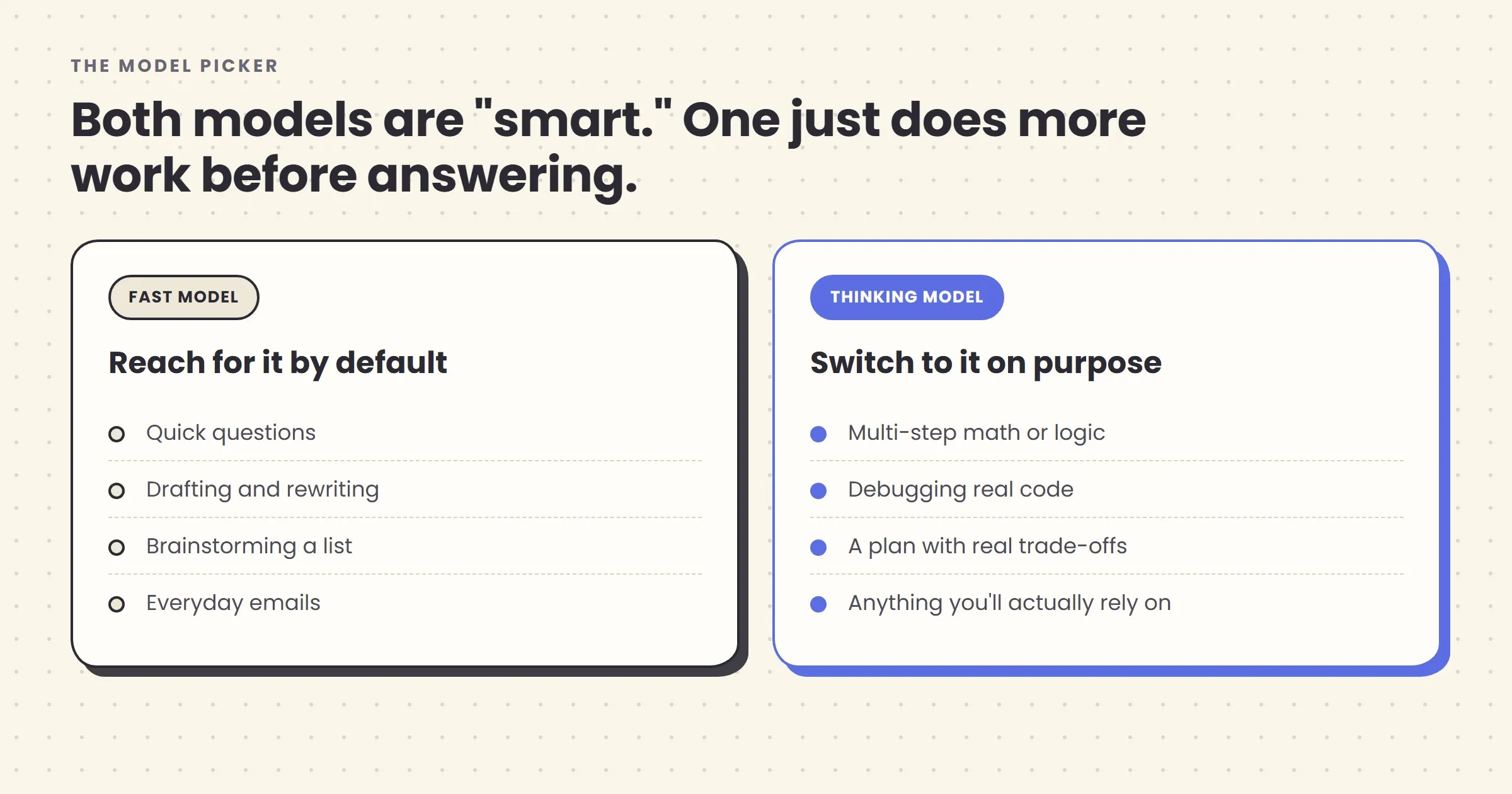
All three products now offer more than one model behind that same chat window, usually surfaced as a small dropdown or toggle most users never open. The distinction that matters isn’t the model names, which change every few months — it’s the underlying trade-off: a fast, general model tuned for everyday requests, and a slower reasoning or thinking model that works through a problem in more explicit steps before answering, at the cost of a longer wait and, on paid tiers, a smaller usage allowance.
The research behind this is solid, not marketing: forcing a model to work through intermediate steps rather than jumping straight to an answer measurably improves accuracy on anything with moving parts — a well-known 2022 study found that simply prompting a model to reason step by step raised its accuracy on grade-school math problems from 17.7% to 78.7%. Modern reasoning models now do a version of that automatically, which is exactly why they’re slower: they’re doing more work per answer, not just more typing.
In practice: leave the default, faster model selected for the bulk of what you do — quick questions, drafts, brainstorming, rewriting — and switch to the slower option specifically for multi-step math, debugging real code, a plan with genuine trade-offs to weigh, or anything complex enough that you’d actually double-check a person’s work on it too. Using the thinking model for “write a birthday message” wastes time for no benefit; using the fast model for “find the bug in this function” wastes your time in a different way, by handing you a confident guess instead of a diagnosis.
Eight mistakes that keep people stuck at beginner level
Most of what separates a beginner account from a confident one isn’t cleverness — it’s a short list of habits, most of them boring, that nobody happens to have pointed out.
- Starting a brand-new chat for everything, including recurring work. If you’ll need this context again next week, it belongs in a project, not a chat you’ll never find again.
- Describing a document instead of attaching it. If a file exists, upload it. This alone fixes a surprising share of mediocre outputs.
- Accepting the first answer. The first draft is a starting point, not a verdict. “Shorter.” “Wrong tone.” “Expand point three” — each turn gets you closer, and most people simply stop after one round.
- Never opening the settings menu. Custom instructions and memory sit unused in almost every account, silently costing their owner the context they’d otherwise never have to repeat.
- Treating every tool as identical, so switching between three apps for no reason. Pick a default and learn its specific strengths instead of re-litigating “which AI is best” every few weeks.
- Using the slow, expensive model for trivial tasks — or the fast one for anything that actually needs to be right. Match the model to the stakes, not habit.
- Never verifying anything, or verifying everything. Both extremes waste effort. Reserve the checking habit for facts with a real consequence.
- Pasting sensitive material into a personal account without checking the privacy settings first. A two-minute look at your data and training settings, once, is the whole fix.
What confident usage actually looks like six months in
None of this is exotic. A confident user isn’t running some elaborate prompt-engineering ritual — they’ve simply absorbed the four features above into normal habits: a couple of standing custom instructions, two or three active projects for recurring work, a light verification reflex for anything that matters, and enough comfort switching models that it’s not a decision they agonize over. The conversations look longer and messier — more back-and-forth, more “actually, redo that” — rather than shorter and more polished, because the polish comes from iteration, not from writing a perfect first message.
The one further step worth knowing about, without needing to act on it yet: all three companies are pushing these products toward doing multi-step work on their own — Claude Cowork, ChatGPT’s Agent mode, and Gemini’s own agentic features can now read files, browse, and complete a task across several steps with much less supervision than a chat. That’s a genuinely different mode of use, and it’s covered in full in what are AI agents? For most people, most of the time, the habits in this guide — a good project, real material to work from, a verification reflex, and the willingness to keep talking instead of accepting the first draft — will do more for the quality of your work than anything agentic will for a long while yet.
A fifteen-minute setup you only have to do once
Reading about these features and actually turning them on are different things, and the second one is where most people stall. Here’s the whole setup, in order, for whichever tool you’ve picked:
- Write your custom instructions (five minutes). Open Settings → Personalization (ChatGPT), Settings → Preferences (Claude), or Saved Info (Gemini) and write three to five sentences: your role, what you typically ask for, your tone preference, and one standing rule (British spelling, no jargon, flag anything you’re unsure about). Don’t overthink the wording — you can edit it in a minute flat later.
- Create one project for your most recurring task (five minutes). Pick the single thing you ask for most often — a weekly report, a recurring type of client email, a course you’re building — and set up a Project, GPT, or Gem for it. Upload the two or three reference documents it should already know about.
- Check your data and privacy settings (two minutes). Find the toggle that controls whether your conversations train future models, and set it deliberately rather than leaving the default unexamined. This matters more once you start uploading real work documents.
- Try one file upload and one screenshot (two minutes). If you’ve never done either, do it once now on something low-stakes, so the habit exists the next time you actually need it.
- Open the model picker once (one minute). Just to know it’s there. You don’t need to use it today — you need to remember it exists the next time you’re staring at a wrong answer to a math or logic problem.
That’s the entire foundation. Everything else in this guide is just doing those five things repeatedly, on real work, until they stop feeling like extra steps.
The bottom line
The gap between a beginner and a confident user of ChatGPT, Claude, or Gemini has almost nothing to do with cleverness and almost everything to do with using more of the product than the text box. Set your custom instructions once. Let memory build up and check it occasionally. Give recurring work a project instead of a fresh chat every time. Upload the actual file instead of describing it. Verify what matters, ignore what doesn’t. Reach for the slower model only when the task actually needs it. None of it costs money, and none of it requires being technical — it requires knowing the features are there, which, for most people, they simply weren’t shown.
Start with one thing from this list — set up custom instructions, or turn your most recurring task into a project — rather than all of them at once. If you want the deeper craft of what to actually type once you’re in there, the prompt engineering guide picks up exactly where this one leaves off. And if you’re still choosing a primary tool, our directory of AI chat assistants is the place to compare them properly, side by side, rather than by reputation.
Frequently asked questions
Is ChatGPT, Claude, or Gemini actually the best one?
None of them wins outright, and the gap between them matters less than which one you actually stick with. ChatGPT has the largest ecosystem and best voice mode, Claude tends to write and reason more carefully and is well-liked for longer documents, and Gemini is most useful if you already live in Gmail, Docs, and Google Search. Pick based on what you'll use daily, not a benchmark score.
Do I need to pay for a subscription to use AI well?
No. The free tiers of ChatGPT, Claude, and Gemini are enough to build every habit in this guide — custom instructions, projects, file uploads, and iteration all work on free accounts, just with lower usage limits and often an older model. Paying mainly buys you more messages, longer memory, and access to the slower, more capable reasoning models when a task actually needs them.
What's the difference between custom instructions and memory?
Custom instructions are what you deliberately tell the AI about yourself once, in your own words, and they apply the same way to every new chat. Memory is what the AI notices and saves on its own as you talk to it, without you writing it down anywhere. Both are editable and both can be turned off — treat instructions as the form you fill in, memory as the notes it takes.
Is it safe to paste work documents into ChatGPT or Claude?
Only for material you'd be comfortable seeing outside your organization. Consumer chatbots may use your conversations to improve future models unless you turn that off in settings, and plenty of business tiers explicitly exclude your data from training — but you have to check, not assume. Never paste customer data, unreleased financials, or anything under NDA into a personal account.
Why does the AI seem to forget things I told it earlier in a long chat?
Every model has a context window — a hard limit on how much of the conversation it can actually see at once — and once a chat runs long enough, the earliest messages quietly fall out of view. This is a real architectural limit, not inattention. Starting a fresh, focused chat (or using a project that stores key facts separately) usually works better than one sprawling thread.
Should I use one AI tool for everything, or switch between them?
Most confident users settle on one default for daily work and keep a second tool on hand for its specific strength — Claude for a long document, Gemini for anything tied to Google Workspace, ChatGPT for its voice mode or plugin ecosystem. You don't need all three open at once; you need to know what each one is unusually good at.
Related articles
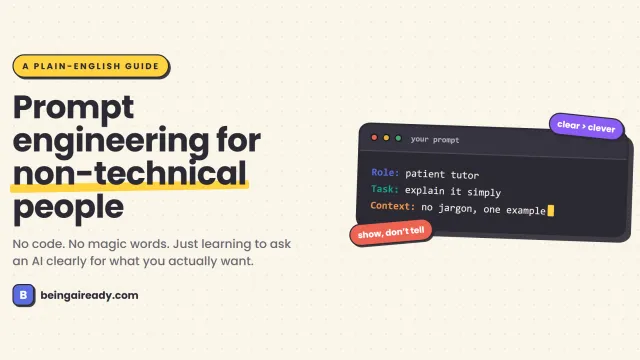
Prompt Engineering for Non-Technical People
Prompt engineering isn't coding — it's telling AI clearly what you want. A plain-English guide to prompts that get better results, no tech background needed.
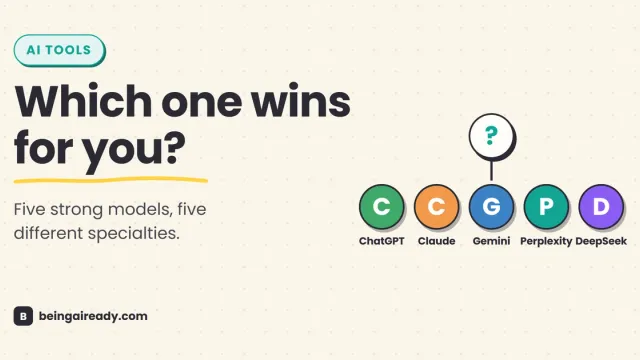
ChatGPT vs Claude vs Gemini vs Perplexity vs DeepSeek (2026)
ChatGPT, Claude, Gemini, Perplexity, and DeepSeek compared on pricing, strengths, and privacy — plus which one actually fits your use case in 2026.
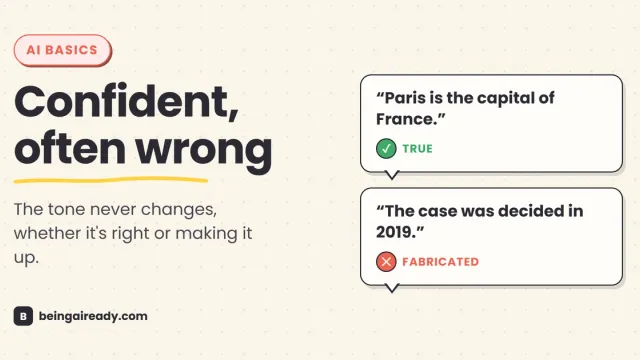
How to Fact-Check and Verify Anything an AI Tells You
AI tools sound confident whether they're right or wrong. Here's a repeatable way to verify any AI answer, with playbooks for code, health, law, and money.