
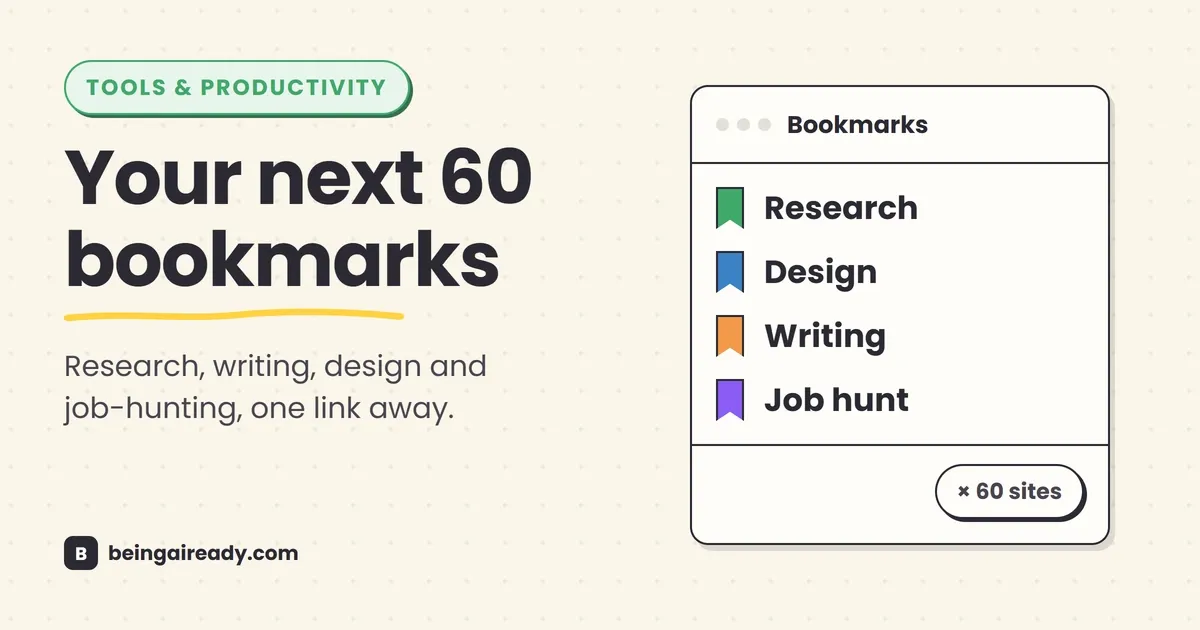
60 Websites You Wish You Knew Earlier (2026 Edition)
Ask most people to name a website that changed how they work and you’ll get the same three or four answers: Google, YouTube, ChatGPT, maybe Canva if they’re feeling generous. That’s not because those are the only tools worth knowing. It’s because they’re the only ones anyone bothered to tell them about.
The web is quietly full of sites that do one job extremely well, cost nothing or close to it, and never show up in a “best AI tools” round-up because they don’t have a marketing budget or a growth team running ads against your searches. Photopea has been running a full, layer-based image editor inside a browser tab since long before anyone was using the word “generative.” Wolfram Alpha has been solving equations and answering factual queries for free since 2009, and most people who’d benefit from it have never heard the name. Consensus will tell you what the actual peer-reviewed research says on a question in about the time it takes to read this sentence — a lot faster than reading the twelve papers yourself, and considerably more reliable than asking a chatbot and hoping it didn’t make something up.
None of this is really about AI, even though a few of these tools use it. Most don’t. And that’s rather the point. Being ready for an internet increasingly built around AI isn’t mainly about learning to write better prompts. It’s about having a decent toolkit for the ordinary ninety percent of your day that has nothing to do with AI at all — editing a photo, translating an email, splitting a dinner bill, checking whether your password showed up in a leak somewhere. This is that toolkit: sixty sites, sorted by what you’re actually trying to do, most of them free, none of them requiring you to comment “link” and wait for a DM.
One note on how to read this. It’s long, on purpose — this is meant to be a reference you bookmark and come back to, not something you read start to finish in one sitting. Jump to whichever section matches what you’re stuck on right now. The rest will still be here later.
Quick answer: This is a reference list of 60 free (or nearly free) websites, sorted by the job you’re doing — research, writing, design, photo and video editing, everyday productivity, privacy, and job hunting. Most of them aren’t AI tools at all; they’re well-built utilities that never show up in “best of” round-ups because they don’t run ads against your searches. Skim to the section that matches whatever you’re stuck on right now and bookmark the rest for later.
If you need to do something specific, start here
Before the full list, the shortcuts. These are the ones people ask us about most.
| If you need to… | Use this |
|---|---|
| Edit a photo without owning Photoshop | Photopea |
| Check if your password has leaked | Have I Been Pwned |
| See what the actual research says, not vibes | Consensus |
| Get your resume past the robots before a human sees it | Jobscan |
| Send money abroad without a bad exchange rate | Wise |
| Turn a long video into short, clippable moments | Opus Clip |
| Remove a background from a photo in one click | remove.bg |
| Store passwords properly instead of reusing one | Bitwarden |
If none of those match what you’re after, keep going — there are fifty-two more below, organized into twelve categories.
How these sixty got picked
Worth being upfront about this. It isn’t an exhaustive list, and it isn’t a neutral one — it’s a working list, filtered down from a much longer pile of tools that didn’t make the cut because they’d been abandoned, paywalled into uselessness, or just weren’t meaningfully better than the obvious alternative.
The rough bar for inclusion: does one job well, doesn’t require an account you’ll forget about, is free or has a free tier generous enough to actually use, and isn’t already something everyone’s heard of a hundred times. A few well-known names still made it in — Notion, Canva, ChatGPT — not because they’re exactly underrated, but because most people using them are only touching a fraction of what they actually do.
Pricing and free-tier limits change. A couple of these will probably tighten their free plans by the time you’re reading this, the way free products eventually do. Where that seems likely to matter, it’s flagged below — but it’s worth checking current pricing yourself before building a workflow around any single tool.
1. Study and research
The default research tool for most people is a search engine stuffed with SEO content, or a chatbot that sounds confident and is sometimes wrong. These five are built for a narrower, more honest job: getting you an answer you can actually check.
Wolfram Alpha (wolframalpha.com) — Launched in 2009 and still one of the more underused sites on the internet. It doesn’t search the web for an answer, it computes one, which matters for anything involving maths, unit conversions, statistics, or basic science. Type in an equation, a chemical formula, or “population of France divided by population of Portugal,” and it works it out rather than linking you to a page that might.
Consensus (consensus.app) — Searches peer-reviewed research and summarizes what it actually says, with citations back to the source papers. Useful for the “does X actually work” questions that a normal search engine mostly answers with someone’s blog post.
Anki (ankiweb.net) — A flashcard app built around spaced repetition: it shows you a card right before you’re likely to forget it, not on a fixed schedule. Not glamorous — the interface looks like it hasn’t changed since 2010 — but it’s what a large share of medical students and language learners actually use to make things stick.
Zotero (zotero.org) — Free, open-source reference manager. Save a source from your browser with one click and it captures the citation automatically; when you’re writing, it formats your bibliography in whatever style you need. If you’ve ever manually typed out a reference list, this is the thirty seconds of setup that gets that hour back.
Connected Papers (connectedpapers.com) — Give it one academic paper and it draws a visual map of related work: what it built on, what cited it, what else sits in the same space. Useful at the start of a literature review, when you’re mostly trying to figure out what you don’t know yet.
2. Writing and editing
Spellcheck catches typos. It has never once told you that your paragraph is exhausting to read. These do.
LanguageTool (languagetool.org) — An open-source alternative to Grammarly that catches grammar and style issues across more than thirty languages, with a browser extension that works more or less anywhere you type. The free tier is more generous than Grammarly’s, though the suggestions are a touch less polished.
Hemingway Editor (hemingwayapp.com) — Paste in your text and it highlights anything hard to read: long sentences, passive voice, unnecessary adverbs. No account, no upload, runs entirely in the browser. Good for anyone whose writing tends to get away from them mid-paragraph, which is most people.
QuillBot (quillbot.com) — A paraphrasing tool, useful less for rewriting whole essays and more for the specific moment where a sentence is clunky and you can’t quite work out why. Also does a decent job summarizing long text down to the actual point.
DeepL (deepl.com) — Translation that a lot of professional translators use as a starting draft, because it tends to catch tone and idiom in a way that older translation tools often flatten. If you’ve ever had a translated email come out sounding like it was written by a robot, this is usually the fix.
Wordtune (wordtune.com) — Rewrites a sentence in a few different tones — more formal, more casual, shorter — and lets you pick. Particularly useful if English isn’t your first language and you want an email to land the way you mean it to, not just be grammatically correct.
3. AI assistants worth actually using
Not a “top ten chatbots” list — most of them are more similar than the marketing suggests. The differences that actually matter are narrower than you’d think. A handful are worth knowing well: ChatGPT, Claude, Perplexity, NotebookLM, and Gamma.
ChatGPT (chatgpt.com) — The default, for good reason: the broadest app and plugin ecosystem, and still the one most people mean when they say “just ask the AI.” Best for quick drafting, brainstorming, and anything where you want a fast first pass.
Claude (claude.ai) — Tends to be the stronger pick for long documents and detailed, multi-step instructions — noticeably better at actually following a long list of specific requirements without dropping half of them by step six. Worth the obvious disclosure here: this description was written by Claude, about Claude. Take it with the appropriate grain of salt.
Perplexity (perplexity.ai) — Answers questions with sources cited inline, the way a search engine should have worked all along. If you’re using a chatbot to research something you plan to rely on, this is the one built for checking your work, not just trusting it.
NotebookLM (notebooklm.google) — Upload your own documents — lecture notes, a contract, a pile of research PDFs — and it will only answer from what you gave it, which cuts hallucination risk considerably. It can also turn your notes into an audio discussion between two AI hosts, which sounds gimmicky until you actually use it on a long commute.
Gamma (gamma.app) — Turns a rough text outline into a formatted slide deck, document, or webpage in a few minutes. Not a replacement for a designer, but a real replacement for the hour you’d otherwise spend fighting PowerPoint’s alignment tools.
4. AI image, video, and voice generation
A separate category from the assistants above, because generating media is a genuinely different job, and the good tools for it aren’t always the famous ones.
Ideogram (ideogram.ai) — An AI image generator that’s noticeably better than most at rendering actual, legible text inside an image — logos, posters, anything with words in it. Most image generators still turn text into alphabet soup; this one mostly doesn’t.
Suno (suno.com) — Generates a complete song, vocals included, from a text prompt. Odd to describe, better to try — type a genre and a topic and it writes and performs something in about a minute. Popular for jingles, personalized songs, and testing ideas before a real production.
ElevenLabs (elevenlabs.io) — Realistic AI voice generation and cloning, widely used in podcast and video editing to add narration without booking studio time. The quality is good enough now that it’s genuinely hard to tell in short clips.
Runway (runwayml.com) — One of the more established names in AI video, used for short clip generation and effects that used to require real visual-effects skill and a much bigger budget.
Krea (krea.ai) — Real-time AI image generation: the image updates as you type or adjust settings, rather than waiting for a full generation each time. Useful for fast visual iteration when you’re not entirely sure what you’re looking for yet.
5. Design and visual work
You don’t need a design background for any of these. That’s rather the point of them existing.
Photopea (photopea.com) — A full, layer-based photo editor that runs entirely in your browser and opens PSD files directly, no Photoshop installation and no account required. If you’ve been paying for image editing software you use twice a year, this is very likely the fix.
Canva (canva.com) — Already familiar to most people, worth including because most people are using maybe five percent of it. Templates exist here for things you wouldn’t think to look for — resumes, YouTube thumbnails, Instagram Story templates, print-ready posters — and the free tier covers a surprising amount of it.
Figma (figma.com) — The standard tool for interface design now, and increasingly used well beyond that for general whiteboarding, diagramming, and team brainstorming. The free tier is generous enough that a lot of small teams never need to upgrade.
Coolors (coolors.co) — Generates color palettes instantly; hit the spacebar to reroll, lock the colors you like, and it regenerates the rest around them. The fastest way to get a palette that doesn’t clash if you have no design training and no time to develop an eye for one.
remove.bg (remove.bg) — Removes the background from a photo in one click, embarrassingly well for something this simple. Useful for product photos, profile pictures, and anything you need on a transparent or different background without opening an editor at all.
6. Free stock assets
Photos, icons, fonts, and illustrations you’re actually allowed to use, which turns out to matter more than people think.
Pexels (pexels.com) — Free stock photos and video, no attribution required, with noticeably better curation than a lot of the older stock-photo sites — less obviously staged, less “diverse group of coworkers laughing at a laptop for no reason.”
Pixabay (pixabay.com) — Similar territory to Pexels, but also covers free music and sound effects, which makes it a reasonable one-stop shop if you’re putting together a video and need images, music, and sound in one place.
unDraw (undraw.co) — Open-source illustrations that you can recolor to match whatever you’re building. If you’ve ever wondered who drew the friendly line-art person on half the SaaS landing pages you’ve seen, it’s very likely this.
Icons8 (icons8.com) — A large icon library, plus some genuinely useful free mockup and photo tools. The free tier usually needs attribution or a link back, which is a fair trade for what you’re getting.
Google Fonts (fonts.google.com) — Free, open-source, fully licensed typefaces, invisibly powering a huge share of the web’s typography. If you need a font for anything — a document, a poster, a website — this should be the first stop before paying for one.
7. Video and audio editing
Editing software used to mean a steep learning curve and an expensive license. Increasingly, it means neither.
CapCut (capcut.com) — Free video editor, originally built for short-form vertical content, now properly capable for longer edits too. Enormous in the creator economy for a reason: it’s fast, and the mobile and desktop versions sync.
Descript (descript.com) — Edits video and audio by editing the transcript: delete a word from the text, and it cuts that word from the recording. It also strips filler words like “um” automatically, which used to be an hour of manual editing.
OBS Studio (obsproject.com) — Free, open-source screen recording and live-streaming software. If you’ve watched a streamer or a tutorial video recently, there’s a decent chance this is what was running underneath it.
Opus Clip (opus.pro) — Feed it a long video — a podcast, a webinar, a talk — and it finds the moments most likely to work as short clips, then cuts vertical, captioned versions automatically. A real time-saver for anyone repurposing long content into short.
Otter (otter.ai) — Transcribes meetings and calls in real time, then generates a summary and a list of action items afterwards. Good for the meeting you were only half paying attention to, and good evidence for the meeting you should have been.
8. Files and PDFs
The unglamorous admin layer of the internet. Nobody gets excited about this category, and everybody needs it eventually.
iLovePDF (ilovepdf.com) — Merge, split, compress, and convert PDFs. The utility knife of file admin — not exciting, genuinely useful roughly once a week for most people who work with documents.
TinyWow (tinywow.com) — Over two hundred free tools spanning PDFs, images, video, and text. Not the prettiest interface on this list, but it covers an unusually wide range of one-off tasks that would otherwise cost you a subscription for something you needed exactly once.
CloudConvert (cloudconvert.com) — Converts between an almost absurd range of file formats. The answer to the “why won’t this file open” problem more often than you’d expect.
Squoosh (squoosh.app) — Built by the Google Chrome team, compresses images with a live before-and-after slider so you can see exactly what you’re trading in quality for file size, rather than guessing.
Smallpdf (smallpdf.com) — Similar ground to iLovePDF, cleaner interface, a solid free tier. Worth having both bookmarked, since one occasionally has a queue when the other doesn’t.
9. Productivity and organization
The tools for managing the day itself, not any particular task within it.
Notion (notion.so) — An all-in-one workspace for notes, docs, and databases, flexible enough that some people build their entire business’s internal tools inside it. The learning curve is real, but the free tier is enough to get a genuine sense of whether it’s for you.
Todoist (todoist.com) — A task manager with natural-language input that actually works — type “pay rent every 1st of the month” and it sets up the recurring task correctly, no fiddling with dropdown menus. Small thing, but it’s the difference between using a task manager and abandoning one after a week.
Tally (tally.so) — A free form builder with no submission limit on the free tier, which is rare — most competitors cap you and then charge. Feels more like filling in a clean document than a form, which is probably why people actually finish them.
Calendly (calendly.com) — Scheduling links that sync to your calendar and end the “does Tuesday at three work for you” email back-and-forth. Once you’ve used one, going back to manual scheduling feels like a genuine downgrade.
Excalidraw (excalidraw.com) — A hand-drawn-style whiteboard for quick sketches: flowcharts, system diagrams, half-formed ideas that don’t need to look finished. The intentionally rough aesthetic makes it feel lower-stakes than a polished diagramming tool, which somehow makes it easier to actually start.
10. Development and web
You don’t need to be a developer for most of these, though a couple assume you’re at least dabbling.
Replit (replit.com) — A full coding environment that runs in the browser, no setup or installation required. Increasingly used for AI-assisted app building even by people who wouldn’t call themselves developers.
regex101 (regex101.com) — Builds and explains regular expressions — the pattern-matching syntax used to find and replace specific bits of text — and breaks down what each part of the pattern is doing as you type it. If you’ve ever needed to find every email address in a document and didn’t know where to start, this is where you start.
Carrd (carrd.co) — One-page websites for a few dollars a year on the paid tier, free for the basics. Good for portfolios, landing pages, and link-in-bio pages, without the overhead of a full website builder.
Vercel (vercel.com) — Hosting for websites and apps with an unusually generous free tier. A large share of new web projects deploy here by default now, mostly because it’s fast and mostly stays out of the way.
ray.so (ray.so) — Turns a code snippet into a nicely formatted, shareable image. Small tool, but if you’ve ever seen a clean screenshot of code on social media, there’s a good chance this made it.
11. Job hunting and career
The modern job hunt runs through software before it runs through a person. These are built for that reality, not against it.
Jobscan (jobscan.co) — Compares your resume against a specific job description and scores how well it’s likely to pass the automated filtering software (an ATS) most companies use before a human ever reads it. Free scans are limited, but even one or two can show you exactly which keywords you’re missing.
Teal (tealhq.com) — Tracks every application in one place — company, status, notes, next steps — plus resume-building tools. Useful mainly because it replaces the spreadsheet everyone builds for this anyway, badly.
Levels.fyi (levels.fyi) — Crowdsourced, verified salary data broken down by company, role, and seniority level. The single most useful thing you can have open in another tab before a salary negotiation.
Kickresume (kickresume.com) — A resume builder with clean templates and an AI-assisted writing helper for the bullet points that always take longer to phrase than they should.
Rezi (rezi.ai) — A resume builder built specifically around ATS compatibility — the formatting choices that look nice to a human but confuse the software reading it first are avoided by default here.
12. Money and everyday life
The least glamorous category on this list, and possibly the most quietly useful.
Wise (wise.com) — International money transfers at close to the real, mid-market exchange rate, rather than the marked-up rate most banks quietly apply. If you’ve ever sent money abroad and had the amount arrive smaller than expected, this is usually why, and this is the fix.
Splitwise (splitwise.com) — Tracks shared expenses across a group — roommates, a trip, a shared household — and works out who owes who without anyone building a spreadsheet. Settles the maths, not the argument, but it removes the maths from the argument.
Bitwarden (bitwarden.com) — A free, open-source password manager that generates and stores strong, unique passwords for every account you have. If you’re reusing the same three passwords everywhere, which most people are, this is the single highest-leverage fix on this entire list.
CamelCamelCamel (camelcamelcamel.com) — Tracks Amazon price history and alerts you when something drops, which is a decent defence against a “sale” price that’s actually higher than the item sold for three months ago.
Have I Been Pwned (haveibeenpwned.com) — Check whether your email or password has shown up in a known data breach. Built and still run by security researcher Troy Hunt since 2013, and it remains the most straightforward way to find out if an account of yours has already been compromised somewhere you never heard about.
How to actually use this list
Sixty tools is too many to adopt at once, and trying to would defeat the point. Nobody needs all of these on a given Tuesday.
A more realistic approach: skim the categories, find the one or two that map onto something that already mildly annoys you — the password you keep reusing, the resume that isn’t landing interviews, the video editing subscription you forgot to cancel — and start there. Bookmark this page rather than any one tool on it. The value of a list like this isn’t in using all of it, it’s in having it to come back to the next time you hit a problem and think “there’s probably a site for this.”
There usually is.
Before you go
This list will drift slightly out of date, the way every list like this does — a tool will change its pricing, or get acquired, or quietly get better than it is today. When that happens, this page gets updated rather than left to rot, which is more than can be said for most “50 best websites” posts still ranking on page one from 2019.
If this was useful, the same approach — categorized, no fluff, every link handed over rather than gated behind a “comment for DM” — is what runs on the Being AI Ready Instagram and in the newsletter. Come find the rest of it.
Frequently asked questions
What's a free alternative to Photoshop?
Photopea is the closest genuine match: a full, layer-based photo editor that runs in the browser, opens PSD files directly, and doesn't require an account or installation.
Is there a free alternative to Grammarly?
LanguageTool is the closest open-source equivalent, covering more than thirty languages with a free browser extension. It's a little less polished than Grammarly's suggestions but covers the same core grammar and style checking.
What's a good free tool to check if my password has been leaked?
Have I Been Pwned, built by security researcher Troy Hunt, checks whether your email address or password has appeared in a known data breach.
What's the best free tool for finding and organizing academic research?
Zotero for saving and formatting citations, and Connected Papers for visually mapping how papers relate to each other. Consensus is the fastest way to get a sourced summary of what the research actually says on a specific question.
How do I get my resume past automated screening software?
Jobscan compares your resume against a specific job description and flags the keywords and formatting choices most likely to trip up an ATS (applicant tracking system) before a human recruiter ever sees it.
Are the tools on this list actually free, or is this the usual bait and switch?
A genuine mix. Some — Bitwarden, LanguageTool, Zotero, Google Fonts, and OBS Studio — are fully free and mostly open-source. Others run on a freemium model: the free tier covers regular use but nudges you toward paying once your needs grow. It's worth checking current pricing before building a workflow around any single tool, since free tiers do tighten over time.
Do I need to know anything about AI to use most of these?
No. Most of the sixty tools here don't use AI at all — they're just well-built utilities for research, writing, and everyday admin. The handful that do use AI (the assistants and image, video, and voice generators) are included because they're genuinely useful, not because being 'AI-ready' means using AI for everything.
Related articles
Free Alternatives to the Software You're Paying For
A no-hype, category-by-category guide to free tools that genuinely replace expensive software, and when paying for the real thing is still worth it.
The Complete AI Tool Stack for Solopreneurs
A practical, job-by-job AI tool stack for solopreneurs: what to use for writing, email, marketing, admin, and support, what it actually costs, and what to skip.
42 Underrated AI Tools Worth Using in 2026
Most people's AI toolkit stops at ChatGPT. Here are 42 practical AI tools, organized by the job you're doing, that quietly save people real time in 2026.